| | |
|---|
| | | <img alt="WebODM" src="https://user-images.githubusercontent.com/1951843/34074943-8f057c3c-e287-11e7-924d-3ccafa60c43a.png" width="180"> |
|---|
| | | |
|---|
| | |   [](https://hosted.weblate.org/engage/webodm/) [](#getting-started) [](https://opendronemap.org/webodm/download/) |
|---|
| | | |
|---|
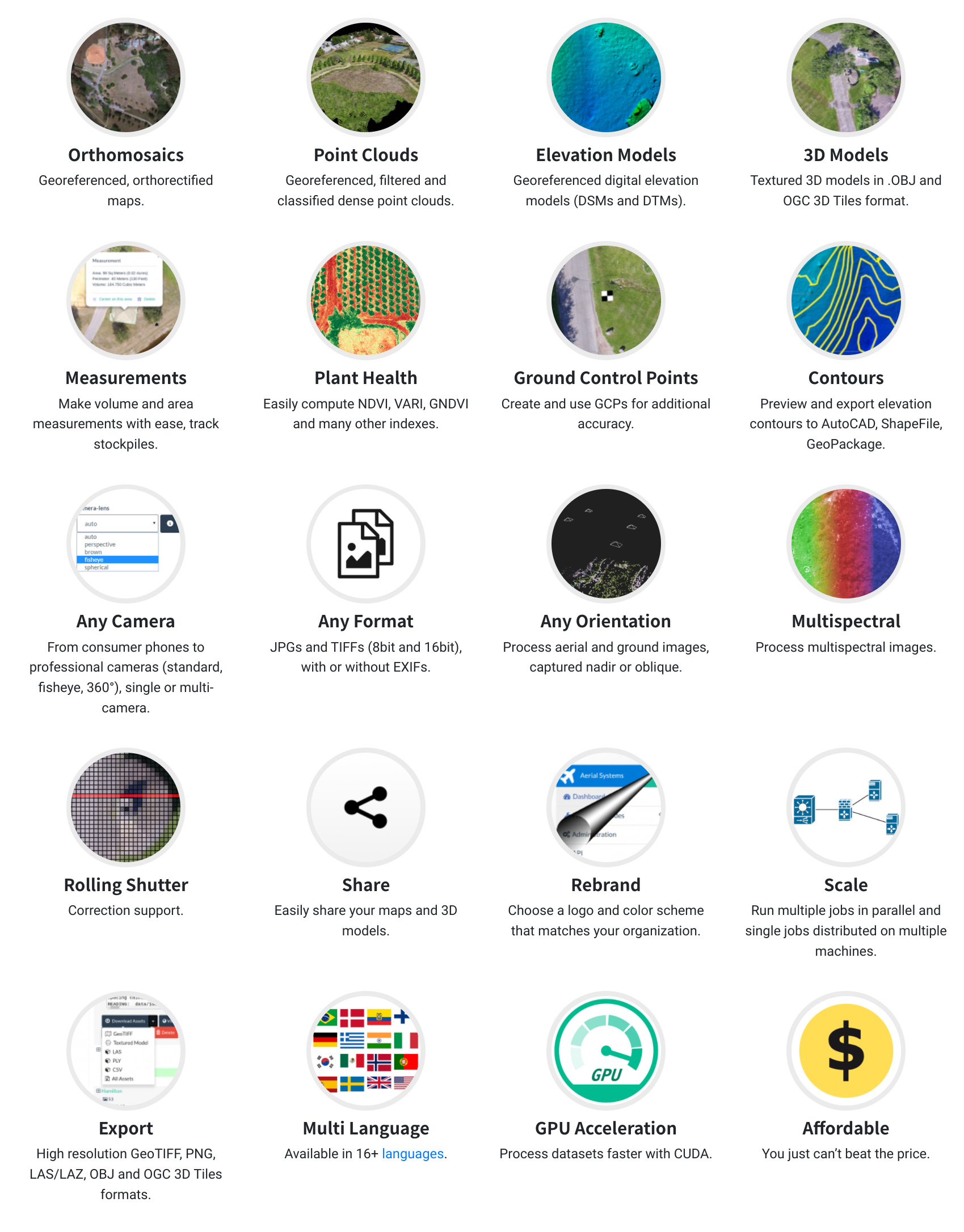
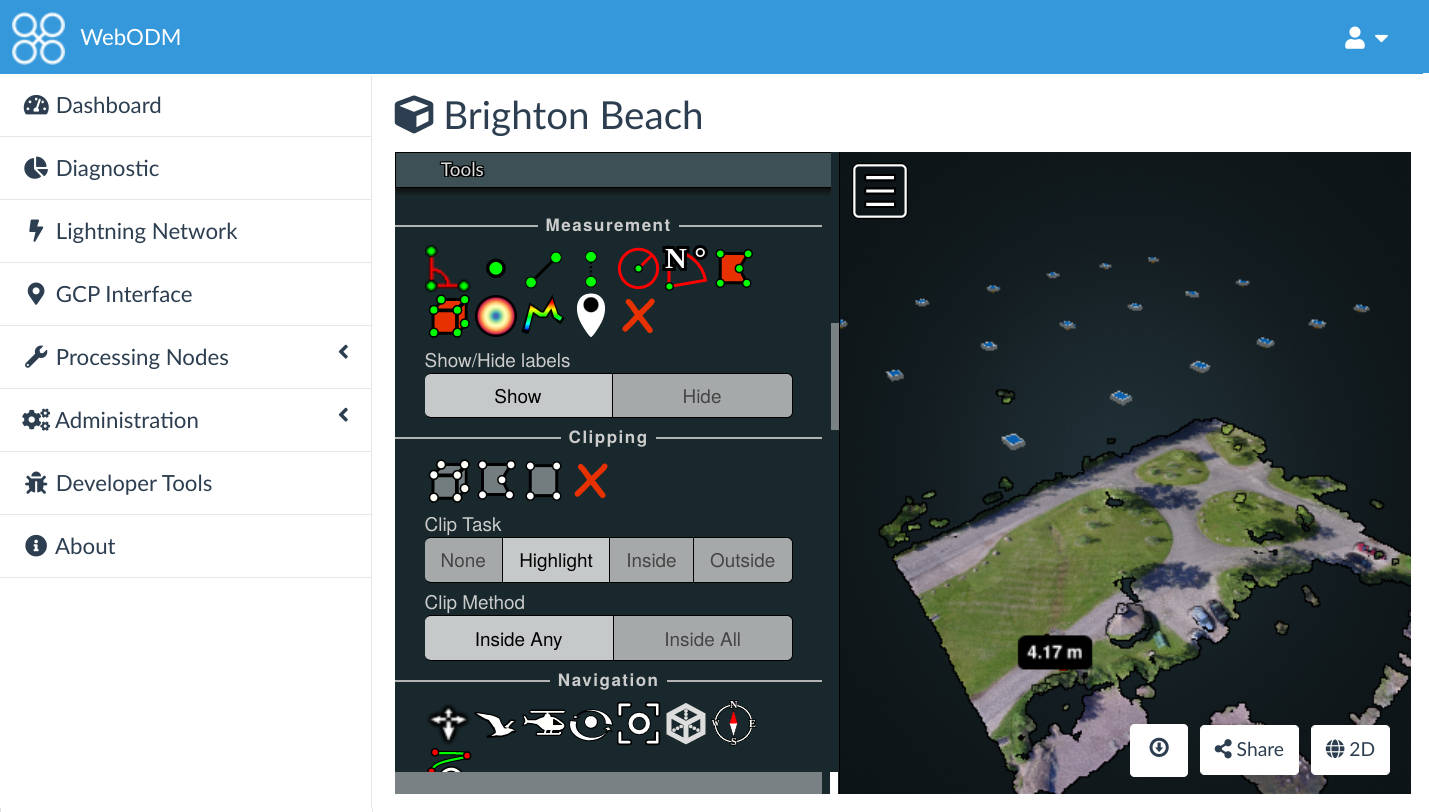
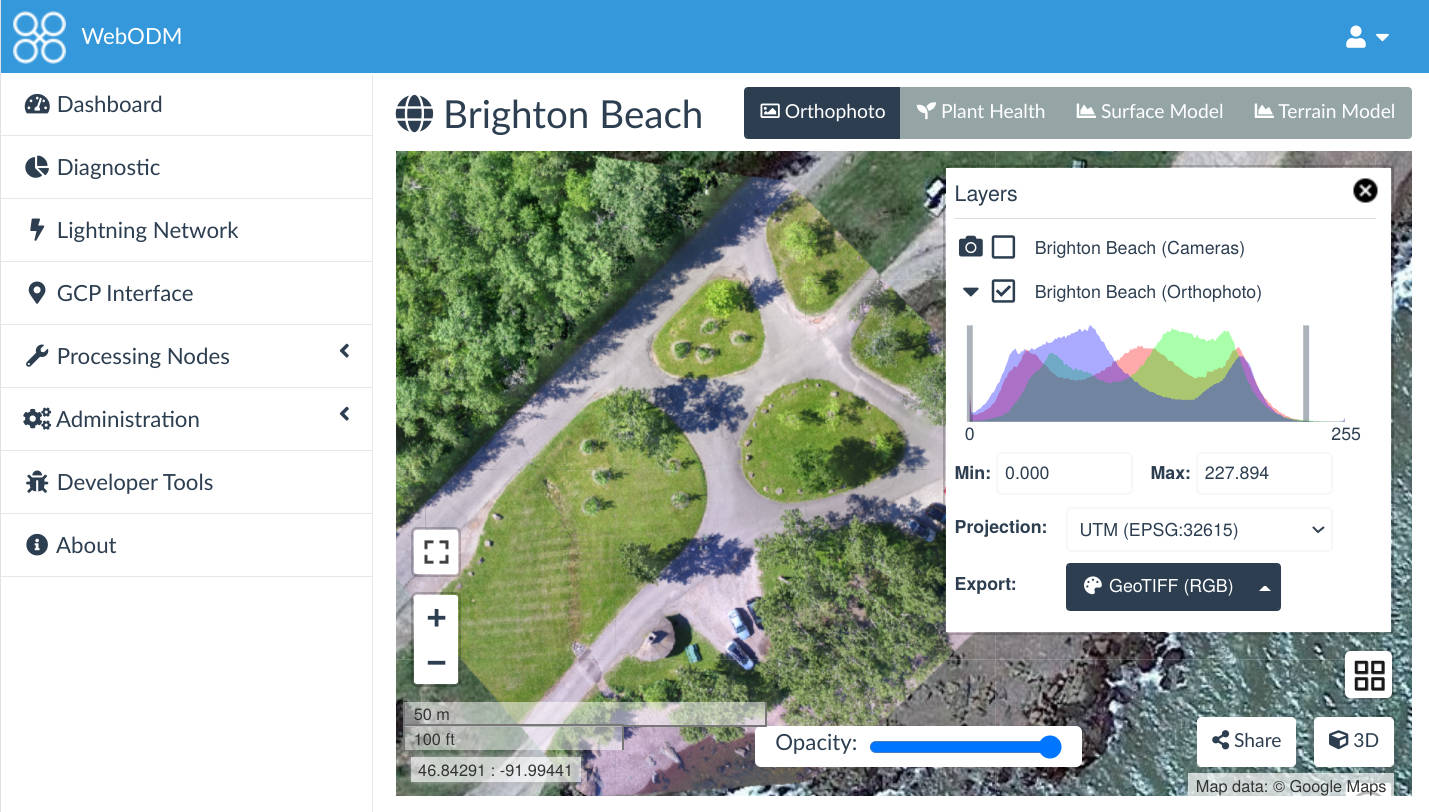
| | | A user-friendly, commercial grade software for drone image processing. Generate georeferenced maps, point clouds, elevation models and textured 3D models from aerial images. It supports multiple engines for processing, currently [ODM](https://github.com/OpenDroneMap/ODM) and [MicMac](https://github.com/OpenDroneMap/NodeMICMAC/). |
|---|
| | | |
|---|
| | |  |
|---|
| | | |
|---|
| | | |
|---|
| | | - [Getting Started](#getting-started) |
|---|
| | | * [Recommended Machine Specs](#recommended-machine-specs) |
|---|
| | | * [Manual installation (Docker)](#manual-installation-docker) |
|---|
| | | + [Requirements](#requirements) |
|---|
| | | + [Installation with Docker](#installation-with-docker) |
|---|
| | | + [Manage Processing Nodes](#manage-processing-nodes) |
|---|
| | | + [Enable MicMac](#enable-micmac) |
|---|
| | | + [Enable SSL](#enable-ssl) |
|---|
| | | + [Where Are My Files Stored?](#where-are-my-files-stored) |
|---|
| | | + [Common Troubleshooting](#common-troubleshooting) |
|---|
| | | - [Images Missing from Lightning Assets](#images-missing-from-lightning-assets) |
|---|
| | | + [Backup and Restore](#backup-and-restore) |
|---|
| | | + [Reset Password](#reset-password) |
|---|
| | | + [Manage Plugins](#manage-plugins) |
|---|
| | | + [Update](#update) |
|---|
| | | * [Run the docker version as a Linux Service](#run-the-docker-version-as-a-linux-service) |
|---|
| | | * [Run it natively](#run-it-natively) |
|---|
| | | * [Run it on the cloud (Google Compute, Amazon AWS)](#run-it-on-the-cloud-google-compute-amazon-aws) |
|---|
| | | - [Customizing and Extending](#customizing-and-extending) |
|---|
| | | - [API Docs](#api-docs) |
|---|
| | | - [Roadmap](#roadmap) |
|---|
| | | - [Getting Help](#getting-help) |
|---|
| | | - [Support the Project](#support-the-project) |
|---|
| | | - [Translations](#translations) |
|---|
| | | - [Become a Contributor](#become-a-contributor) |
|---|
| | | - [Architecture Overview](#architecture-overview) |
|---|
| | | - [License](#license) |
|---|
| | | - [Trademark](#trademark) |
|---|
| | | |
|---|
| | | |
|---|
| | |  |
|---|
| | | |
|---|
| | |  |
|---|
| | | |
|---|
| | | # Getting Started |
|---|
| | | |
|---|
| | | Windows and macOS users can purchase an automated [installer](https://www.opendronemap.org/webodm/download#installer), which makes the installation process easier. |
|---|
| | | |
|---|
| | | There's also a cloud-hosted version of WebODM available from [webodm.net](https://webodm.net). |
|---|
| | | |
|---|
| | | ## Recommended Machine Specs |
|---|
| | | |
|---|
| | | To run a standalone installation of WebODM (the user interface), including the processing component (NodeODM), we recommend at a minimum: |
|---|
| | | |
|---|
| | | * 100 GB free disk space |
|---|
| | | * 16 GB RAM |
|---|
| | | |
|---|
| | | Don't expect to process more than a few hundred images with these specifications. To process larger datasets, add more RAM linearly to the number of images you want to process. A CPU with more cores will speed up processing, but can increase memory usage. GPU acceleration is also supported on Linux and WSL. To make use of your CUDA-compatible graphics card, make sure to pass `--gpu` when starting WebODM. You need the nvidia-docker installed in this case, see https://github.com/NVIDIA/nvidia-docker and https://docs.nvidia.com/datacenter/cloud-native/container-toolkit/install-guide.html#docker for information on docker/NVIDIA setup. |
|---|
| | | |
|---|
| | | WebODM runs best on Linux, but works well on Windows and Mac too. If you are technically inclined, you can get WebODM to run natively on all three platforms. |
|---|
| | | |
|---|
| | | WebODM by itself is just a user interface (see [below](#odm-nodeodm-webodm-what)) and does not require many resources. WebODM can be loaded on a machine with just 1 or 2 GB of RAM and work fine without NodeODM. You can then use a processing service such as the [lightning network](https://webodm.net) or run NodeODM on a separate, more powerful machine. |
|---|
| | | |
|---|
| | | ## Manual installation (Docker) |
|---|
| | | To install WebODM manually on your machine with docker: |
|---|
| | | |
|---|
| | | ### Requirements |
|---|
| | | - [Git](https://git-scm.com/downloads) |
|---|
| | | - [Docker](https://www.docker.com/) |
|---|
| | | |
|---|
| | | * Windows users should install [Docker Desktop](https://hub.docker.com/editions/community/docker-ce-desktop-windows) and : |
|---|
| | | 1. make sure Linux containers are enabled (Switch to Linux Containers...) |
|---|
| | | |
|---|
| | | 2. give Docker enough CPUs (default 2) and RAM (>4Gb, 16Gb better but leave some for Windows) by going to Settings -- Advanced |
|---|
| | | |
|---|
| | | 3. select where on your hard drive you want virtual hard drives to reside (Settings -- Advanced -- Images & Volumes). |
|---|
| | | |
|---|
| | | 4. If you want to run the processing component (NodeODM) with GPU acceleration, install [WSL](https://learn.microsoft.com/windows/wsl/) and [set up GPU acceleration](https://learn.microsoft.com/windows/wsl/tutorials/gpu-compute). It's supported on Windows 11 or Windows 10, version 21H2 or higher. |
|---|
| | | |
|---|
| | | ### Installation with Docker |
|---|
| | | * From the Docker Quickstart Terminal or Git Bash (Windows), or from the command line (Mac / Linux / WSL), type: |
|---|
| | |
|---|
| | | ./webodm.sh update |
|---|
| | | ``` |
|---|
| | | |
|---|
| | | ### Manage Processing Nodes |
|---|
| | | |
|---|
| | | WebODM can be linked to one or more processing nodes that speak the [NodeODM API](https://github.com/OpenDroneMap/NodeODM/blob/master/docs/index.adoc), such as [NodeODM](https://github.com/OpenDroneMap/NodeODM), [NodeMICMAC](https://github.com/OpenDroneMap/NodeMICMAC/) or [ClusterODM](https://github.com/OpenDroneMap/ClusterODM). The default configuration includes a "node-odm-1" processing node which runs on the same machine as WebODM, just to help you get started. As you become more familiar with WebODM, you might want to install processing nodes on separate machines. |
|---|
| | | |
|---|
| | | Adding more processing nodes will allow you to run multiple jobs in parallel. |
|---|
| | | |
|---|
| | | You can also setup a [ClusterODM](https://github.com/OpenDroneMap/ClusterODM) node to run a single task across multiple machines with [distributed split-merge](https://docs.opendronemap.org/large/?highlight=distributed#getting-started-with-distributed-split-merge) and process dozen of thousands of images more quickly, with less memory. |
|---|
| | | |
|---|
| | | If you don't need the default "node-odm-1" node, simply pass `--default-nodes 0` flag when starting WebODM: |
|---|
| | | |
|---|
| | | `./webodm.sh restart --default-nodes 0`. |
|---|
| | | |
|---|
| | | Then from the web interface simply manually remove the "node-odm-1" node. |
|---|
| | | |
|---|
| | | ## Distributed Installation Using NAS (Qnap) |
|---|
| | | If you use lightning or another processor node the requirements for WebODM are low enough for it to run on a fairly low power device such as a NAS. Testing has been done on a Qnap-TS264 with 32Gb of RAM (Celeron N5095 processor) |
|---|
| | | To install WebODM on a Qnap NAS:- |
|---|
| | | 1) Enable ssh access to the NAS in control panel |
|---|
| | | 2) Install git. This might be easily achieved using the [qgit qkpg](https://www.myqnap.org/product/qgit/) |
|---|
| | | 3) Now follow the “Installation with Docker” instructions above. |
|---|
| | | 4) A new "webodm" application should appear in container station along with four individual containers for the app. |
|---|
| | | 5) Webodm should be available at port 8000 of the NAS. |
|---|
| | | 6) Setup a lightning account online and configure it within "processing nodes". It's also possible to setup a more powerful computer to run processing tasks instead of lightning. |
|---|
| | | |
|---|
| | | This method of working may be useful if using the WebODM Lightning PAYG model as it offers somewhere to host your models outwith the three day window offered as part of PAYG |
|---|
| | | |
|---|
| | | ### Enable MicMac |
|---|
| | | |
|---|
| | | WebODM can use [MicMac](https://github.com/OpenDroneMap/micmac) as a processing engine via [NodeMICMAC](https://github.com/OpenDroneMap/NodeMICMAC/). To add MicMac, simply run: |
|---|
| | | |
|---|
| | | `./webodm.sh restart --with-micmac` |
|---|
| | | |
|---|
| | | This will create a "node-micmac-1" processing node on the same machine running WebODM. Please note that NodeMICMAC is in active development and is currently experimental. If you find issues, please [report them](https://github.com/OpenDroneMap/NodeMICMAC/issues) on the NodeMICMAC repository. |
|---|
| | | |
|---|
| | | ### Enable SSL |
|---|
| | | |
|---|
| | | WebODM has the ability to automatically request and install a SSL certificate via [Let’s Encrypt](https://letsencrypt.org/), or you can manually specify your own key/certificate pair. |
|---|
| | | |
|---|
| | | - Setup your DNS record (webodm.myorg.com --> IP of server). |
|---|
| | | - Make sure port 80 and 443 are open. |
|---|
| | | - Run the following: |
|---|
| | | |
|---|
| | | ```bash |
|---|
| | | ./webodm.sh restart --ssl --hostname webodm.myorg.com |
|---|
| | |
|---|
| | | apt-get install binutils libproj-dev gdal-bin nginx |
|---|
| | | ``` |
|---|
| | | |
|---|
| | | On Windows use the [OSGeo4W](https://trac.osgeo.org/osgeo4w/) installer to install GDAL. MacOS users can use: |
|---|
| | | |
|---|
| | | ``` |
|---|
| | | brew install postgres postgis |
|---|
| | | ``` |
|---|
| | |
|---|
| | | gdalinfo --version |
|---|
| | | redis-server --version |
|---|
| | | ``` |
|---|
| | | Should all work without errors. |
|---|
| | | |
|---|
| | | ## Run it on the cloud (Google Compute, Amazon AWS) |
|---|
| | | |
|---|
| | | 12 steps, to have WebODM running on a cloud instance. |
|---|
| | | |
|---|
| | | These steps are for Google Cloud, but can also be used for Amazon AWS, and other cloud platforms with small modifications: |
|---|
| | | |
|---|
| | | 1. Launch a Google Cloud instance of Ubuntu 18.0 LTS. |
|---|
| | | 2. Open the SSH terminal - Google offers SSH via the website. |
|---|
| | | 3. Run sudo apt-get update |
|---|
| | | 4. Run sudo apt-get upgrade |
|---|
| | | 5. Install [docker-compose](https://docs.docker.com/compose/install/). Do not install via apt for 24.04 onward. |
|---|
| | | 6. Run sudo apt-get install python-pip |
|---|
| | | 7. Run git clone https://github.com/OpenDroneMap/WebODM --config core.autocrlf=input --depth 1 |
|---|
| | | 8. cd WebODM (Linux is case sensitive) |
|---|
| | | 9. sudo ./webodm.sh start |
|---|
| | | 10. You now can access webodm via the public IP address for your google instance. Remember the default port of 8000. |
|---|
| | | 11. Check that your instance's firewall is allowing inbound TCP connections on port 8000! If you forget this step you will not be able to connect to WebODM. |
|---|
| | | 12. Open http://GooglepublicIPaddressforyourinstance:8000 |
|---|
| | | |
|---|
| | | To setup the firewall on Google Cloud, open the instance, on the middle of the instance settings page find NIC0. Open it, and then add the TCP Port 8000 for ingress, and egress on the Firewall. |
|---|
| | | |
|---|
| | | |
|---|
| | | |
|---|
| | | # Customizing and Extending |
|---|
| | | |
|---|
| | | Small customizations such as changing the application colors, name, logo, or adding custom CSS/HTML/Javascript can be performed directly from the Customize -- Brand/Theme panels within WebODM. No need to fork or change the code. |
|---|
| | | |
|---|
| | | More advanced customizations can be achieved by writing [plugins](https://github.com/OpenDroneMap/WebODM/tree/master/coreplugins). This is the preferred way to add new functionality to WebODM since it requires less effort than maintaining a separate fork. The plugin system features server-side [signals](https://github.com/OpenDroneMap/WebODM/blob/master/app/plugins/signals.py) that can be used to be notified of various events, a ES6/React build system, a dynamic [client-side API](https://github.com/OpenDroneMap/WebODM/tree/master/app/static/app/js/classes/plugins) for adding elements to the UI, a built-in data store, an async task runner, a GRASS engine, hooks to add menu items and functions to rapidly inject CSS, Javascript and Django views. |
|---|
| | | |
|---|
| | | For plugins, the best source of documentation currently is to look at existing [code](https://github.com/OpenDroneMap/WebODM/tree/master/coreplugins). If a particular hook / entrypoint for your plugin does not yet exist, [request it](https://github.com/OpenDroneMap/WebODM/issues). We are adding hooks and entrypoints as we go. |
|---|
| | | |
|---|
| | | To create a plugin simply copy the `plugins/test` plugin into a new directory (for example, `plugins/myplugin`), then modify `manifest.json`, `plugin.py` and issue a `./webodm.sh restart`. |
|---|
| | | |
|---|
| | | # API Docs |
|---|
| | | |
|---|
| | | See the [API documentation page](http://docs.webodm.org). |
|---|
| | | |
|---|
| | | # Roadmap |
|---|
| | | |
|---|
| | | We follow a bottom-up approach to decide what new features are added to WebODM. User feedback guides us in the decision making process and we collect such feedback via [improvement requests](https://github.com/OpenDroneMap/WebODM/issues?q=is%3Aopen+is%3Aissue+label%3Aimprovements). |
|---|
| | | |
|---|
| | | Don't see a feature that you want? [Open a feature request](https://github.com/OpenDroneMap/WebODM/issues) or [help us build it](/CONTRIBUTING.md). |
|---|
| | | |
|---|
| | | Sometimes we also prioritize work that has received financial backing. If your organization is in the position to financially support the development of a particular feature, [get in touch](https://community.opendronemap.org) and we'll make it happen. |
|---|
| | | |
|---|
| | | # Getting Help |
|---|
| | | |
|---|
| | | We have several channels of communication for people to ask questions and to get involved with the community: |
|---|
| | | |
|---|
| | | - [OpenDroneMap Community Forum](http://community.opendronemap.org/c/webodm) |
|---|
| | | - [Report Issues](https://github.com/OpenDroneMap/WebODM/issues) |
|---|
| | | |
|---|
| | | The preferred way to communicate is via the [OpenDroneMap Community Forum](http://community.opendronemap.org/c/webodm). |
|---|
| | | |
|---|
| | | # Support the Project |
|---|
| | | |
|---|
| | | There are many ways to contribute back to the project: |
|---|
| | | |
|---|
| | | - Help us test new and existing features and report [bugs](https://www.github.com/OpenDroneMap/WebODM/issues) and [feedback](http://community.opendronemap.org/c/webodm). |
|---|
| | | - [Share](http://community.opendronemap.org/c/datasets) your aerial datasets. |
|---|
| | | - Help answer questions on the community [forum](http://community.opendronemap.org/c/webodm) and [chat](https://gitter.im/OpenDroneMap/web-development). |
|---|
| | | - ⭐️ us on GitHub. |
|---|
| | | - Help us [translate](#translations) WebODM in your language. |
|---|
| | | - Help us classify [point cloud datasets](https://github.com/OpenDroneMap/ODMSemantic3D). |
|---|
| | | - Spread the word about WebODM and OpenDroneMap on social media. |
|---|
| | | - While we don't accept donations, you can purchase an [installer](https://webodm.org/download#installer), a [book](https://odmbook.com/) or a [sponsor package](https://github.com/users/pierotofy/sponsorship). |
|---|
| | | - You can [pledge funds](https://fund.webodm.org) for getting new features built and bug fixed. |
|---|
| | | - Become a contributor 🤘 |
|---|
| | | |
|---|
| | | # Translations |
|---|
| | | |
|---|
| | | It's easy to translate WebODM in a different language! |
|---|
| | | |
|---|
| | | - Visit https://hosted.weblate.org/engage/webodm/ and register an account (it's free) |
|---|
| | | - Pick a language to translate, or [start a new translation](https://hosted.weblate.org/new-lang/webodm/webodm/) |
|---|
| | | - Start translating! It's that easy. |
|---|
| | | |
|---|
| | | If you want to preview your translation work, start WebODM in developer mode: |
|---|
| | | |
|---|
| | | ``` |
|---|
| | | ./webodm.sh restart --dev |
|---|
| | | ``` |
|---|
| | | |
|---|
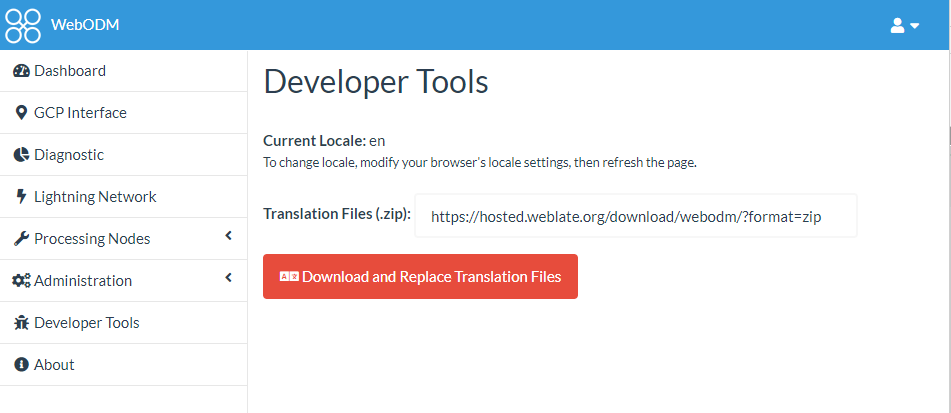
| | | Then edit the [LOCALES](https://github.com/OpenDroneMap/WebODM/blob/master/LOCALES) file to include your translation locale code. Finally, visit the `Developer Tools` panel from WebODM's dashboard and press the `Download and Replace Translation Files` button: |
|---|
| | | |
|---|
| | |  |
|---|
| | | |
|---|
| | | The latest translation files from weblate.org will be downloaded and applied to the installation of WebODM. |
|---|
| | | |
|---|
| | | # Become a Contributor |
|---|
| | | |
|---|
| | | The easiest way to get started is to take a look at our list of [outstanding issues](https://github.com/OpenDroneMap/WebODM/labels/help%20wanted) and pick one. You can also fix/improve something entirely new based on your experience with WebODM. All ideas are considered and people of all skill levels are welcome to contribute. |
|---|
| | | |
|---|
| | | You don't necessarily need to be a developer to become a contributor. We can use your help to write better documentation and improve the user interface texts and visuals. |
|---|
| | | |
|---|
| | | If you know how to code, we primarily use Python (Django), Javascript (React), HTML and SCSS. See the [Development Quickstart](http://docs.webodm.org/#development-quickstart) and [Contributing](/CONTRIBUTING.md) documents for more information. |
|---|
| | | |
|---|
| | | To make a contribution, you will need to open a pull request ([here's how](https://github.com/Roshanjossey/first-contributions#fork-this-repository)). To make changes to WebODM, make a clone of the repository and run `./webodm.sh start --dev`. |
|---|
| | | |
|---|
| | | If you have questions visit us on the [forum](http://community.opendronemap.org/c/webodm) and we'll be happy to help you out with your first contribution. |
|---|
| | | |
|---|
| | | # Architecture Overview |
|---|
| | | |
|---|
| | | The [OpenDroneMap project](https://github.com/OpenDroneMap/) is composed of several components. |
|---|
| | | |
|---|
| | | - [ODM](https://github.com/OpenDroneMap/ODM) is a command line toolkit that processes aerial images. Users comfortable with the command line are probably OK using this component alone. |
|---|
| | | - [NodeODM](https://github.com/OpenDroneMap/NodeODM) is a lightweight interface and API (Application Program Interface) built directly on top of [ODM](https://github.com/OpenDroneMap/ODM). Users not comfortable with the command line can use this interface to process aerial images and developers can use the API to build applications. Features such as user authentication, map displays, etc. are not provided. |
|---|
| | | - [WebODM](https://github.com/OpenDroneMap/WebODM) adds more features such as user authentication, map displays, 3D displays, a higher level API and the ability to orchestrate multiple processing nodes (run jobs in parallel). Processing nodes are simply servers running [NodeODM](https://github.com/OpenDroneMap/NodeODM). |
|---|
| | | |
|---|
| | |  |
|---|
| | | |
|---|
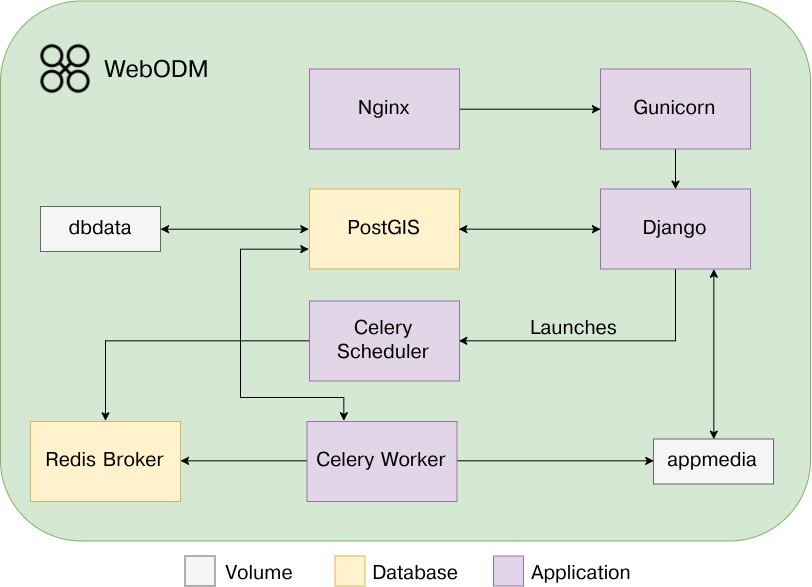
| | | WebODM is built with scalability and performance in mind. While the default setup places all databases and applications on the same machine, users can separate its components for increased performance (ex. place a Celery worker on a separate machine for running background tasks). |
|---|
| | | |
|---|
| | |  |
|---|
| | | |
|---|
| | | A few things to note: |
|---|
| | | * We use Celery workers to do background tasks such as resizing images and processing task results, but we use an ad-hoc scheduling mechanism to communicate with NodeODM (which processes the orthophotos, 3D models, etc.). The choice to use two separate systems for task scheduling is due to the flexibility that an ad-hoc mechanism gives us for certain operations (capture task output, persistent data and ability to restart tasks mid-way, communication via REST calls, etc.). |
|---|
| | | * If loaded on multiple machines, Celery workers should all share their `app/media` directory with the Django application (via network shares). You can manage workers via `./worker.sh` |
|---|
| | | |
|---|
| | | |
|---|
| | | # License |
|---|
| | | |
|---|
| | | WebODM is licensed under the terms of the [GNU Affero General Public License v3.0](https://github.com/OpenDroneMap/WebODM/blob/master/LICENSE.md). |
|---|
| | | |
|---|
| | | # Trademark |
|---|
| | | |
|---|
| | | See [Trademark Guidelines](https://github.com/OpenDroneMap/documents/blob/master/TRADEMARK.md) |
|---|
| | | Should all work without errors. |
|---|